
I was not prepared for just how much I would hate using Speaker Coach, but that doesn’t mean it wasn’t helpful.
The AI-powered speaking coach and presentation mentor built into PowerPoint is designed to help anyone, including educators and their students, improve their public speaking abilities.
I’ve always been comfortable with public speaking, and think I do a solid job. My voice carries, I speak confidently, and I feel I know how to read a crowd and respond in the moment to their moods. But I am by no means perfect. I know that I can mumble, I lose my train of thought sometimes, and when I read from a prewritten script or speech, I have a tendency to read it in a semi-lifeless robotic voice. Also, I have a bad habit of reading too much from slides, especially when I get nervous, which is why I often avoid using slides in my presentations.
Speaker Coach caught on to all these weaknesses, almost immediately, which was, frankly, a little bit disheartening. I always hoped I was being too hard on myself and that I was actually far better at public speaking than I thought. This made using Speaker Coach an unpleasant experience, but it also meant it was doing its job and could help me improve my presentations.
So overall, despite some minor issues, Speaker Coach seems to be a strong, if slightly intimidating, tool for improving public speaking. Here’s a closer look.
How Speaker Coach In PowerPoint Works
Speaker Coach is built into PowerPoint. To access it, users access the web version of PowerPoint through a Microsoft-linked account. They then upload an existing slideshow or create a new one.
Once a user is ready to practice, they select the Slideshow tab, then choose the Rehearse with Coach option. After this, you can move through your presentation as you talk and practice with Speaker Coach monitoring it all.
As you speak, the program gives on-screen guidance by default, though you can turn off this feature. It will provide feedback such as telling you to speak more slowly, avoiding “ahs” and “ehs,” and offering encouragement that you are doing great and should keep it up.
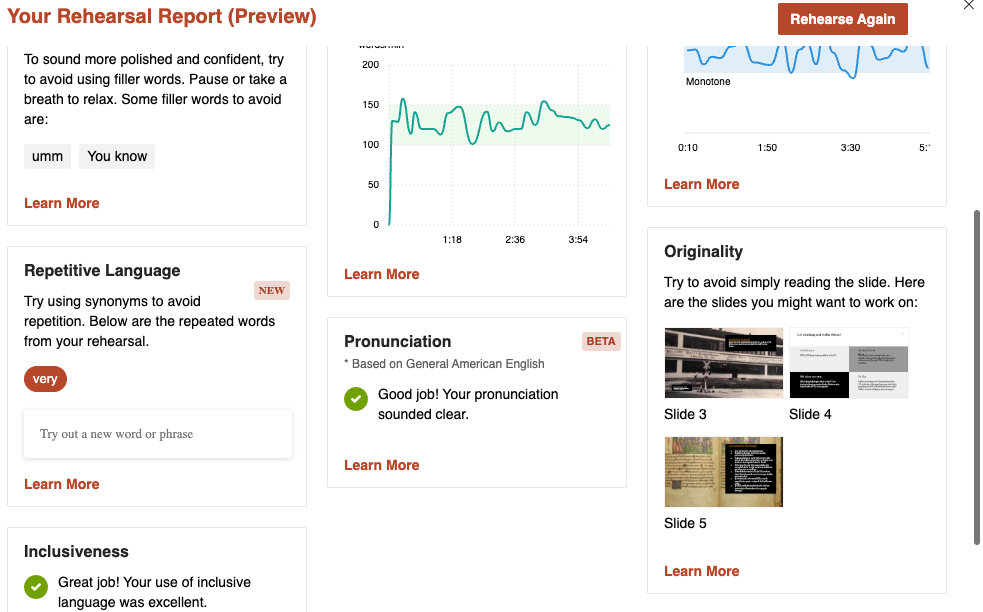
Once you finish the presentation, you get a breakdown of your overall performance, including a wide range of useful feedback on your presentation. It will let you know, for instance, how fast you spoke and it was too rapid or too slow, and whether you read from the slides directly too often, and if so, which slides. It also offers a chart on how your pronunciation was, as well as your tone variation and your use of inclusive language, as well as many helpful details such as how long you spent on each slide.
What Are Speaker Coach’s Best Features?
Public speaking is often a vital skill for educators, but it can be a tricky one to practice. Speaker Coach offers the chance for hands-on practice with specific and actionable feedback.
The final report is really helpful in assessing your strengths and weaknesses as an instructor. The fact that it recognized the slides I had a tendency to read too much from was fantastic.
It can also help you identify the strengths and weaknesses of different types of presentations. I practiced with scripted presentations and with unscripted ones in which I relied only on my slides. I learned, unfortunately but not particularly surprisingly, that I have too many “ums” and “ahs” when I don’t use a script. Reading from a script corrects this, but then my voice becomes more lifeless and monotone. Identifying this helps me target both concerns as I prepare for future presentations.
What Speaker Coach Features Need Work?
As I mentioned at the start, despite finding it helpful, I didn’t enjoy using Speaker Coach. Some of this is probably inherent in practicing a skill as deeply personal as speaking, but there were also design features that made this worse.
The real-time feedback tool was more annoying than helpful, and I was tempted to turn it off, which is option. If I said “ah” or “mmm” it would start scolding me, which made me feel like a kid when adults used to admonish me to “stop mumbling.” Even when it praised what I was doing, it was distracting.
Another weakness of Speaker Coach overall is that even though it was great at diagnosing the problems in speech, its suggestions for fixing these problems are limited.
It told me, for instance, to avoid saying “ah” by pausing and breathing, which I know I should do, except it didn’t offer more concrete advice on actually practicing this skill or how I might build in these natural pauses. When it came to speaking in a monotone, Speaker Coach didn’t offer any suggestions of any kind for improvement.
Overall, more detailed suggestions and/or links to resources on public speaking would take this tool to the next level.
How Much Does Speaker Coach Cost?
Speaker Coach is free with PowerPoint, which comes with most Microsoft Office plans available through schools or businesses.
Individual subscriptions range between $6.99 and $9.99 per month, depending on whether users pay annually or monthly.
Bottom Line on Speaker Coach
Ultimately, I found Speaker Coach helpful, if unpleasant, to use, but I plan on using it in the future as I try to improve my public speaking ability. I would recommend it to educators and students who are already comfortable with public speaking and looking to really hone their craft.
I wouldn’t recommend it to your average student who is working on a presentation for class because I worry the no-mercy criticism Speaker Coach provides could have a negative effect on someone who is new to presentations and likely already nervous about public speaking.
However, for the right type of educator or student with thick skin, Speaker Coach can be a helpful speaking coach.
